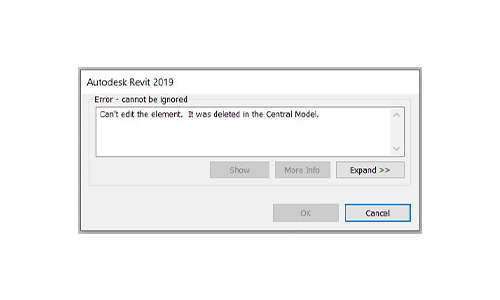
Solution #1 — Synchronize
If multiple designers are working on the file:
- Synchronize one by one. The user experiencing the error should synchronize last.
- If the error persists, see Solution #2.
Solution #2 — Resave the central file
Replace the central file.
⚠️ Note: Data loss is possible if other users have been working in the central file since the last synchronization. In case of simultaneous work, only changes from the file used to replace the central will be preserved. Changes from other local files must be transferred manually.
Before replacing:
- All team members must synchronize and close their local copies.
- If synchronization is not possible, changes must be manually transferred from local files.
- (To check who is working in the file, see Comments.)
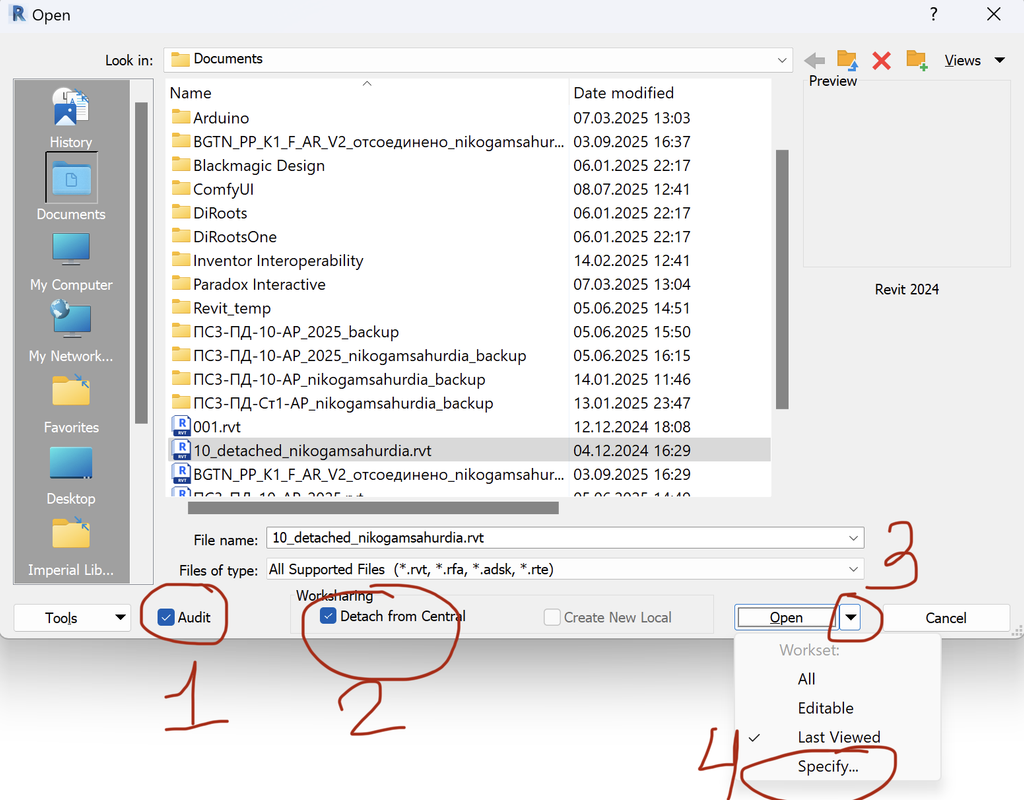
1. Open the file with Detach from Central and Audit.
2. When prompted, choose Specify (which worksets to load):
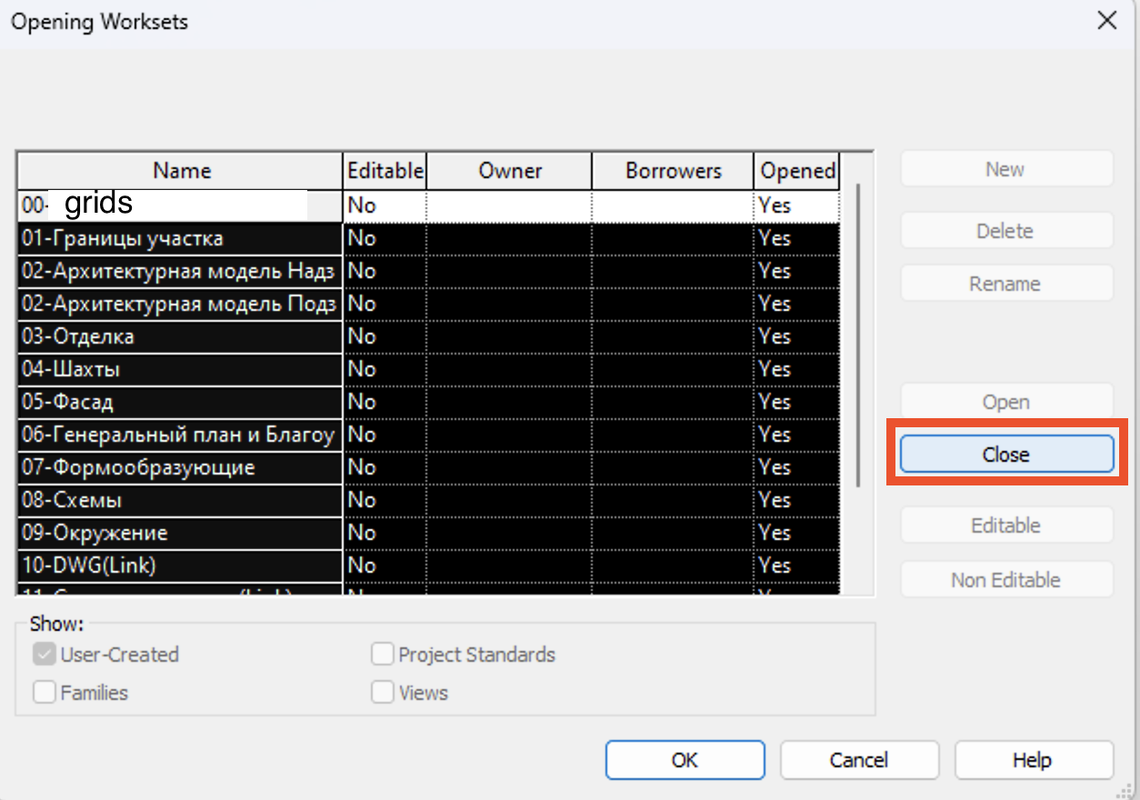
3. Close all worksets except the one containing shared levels and grids.
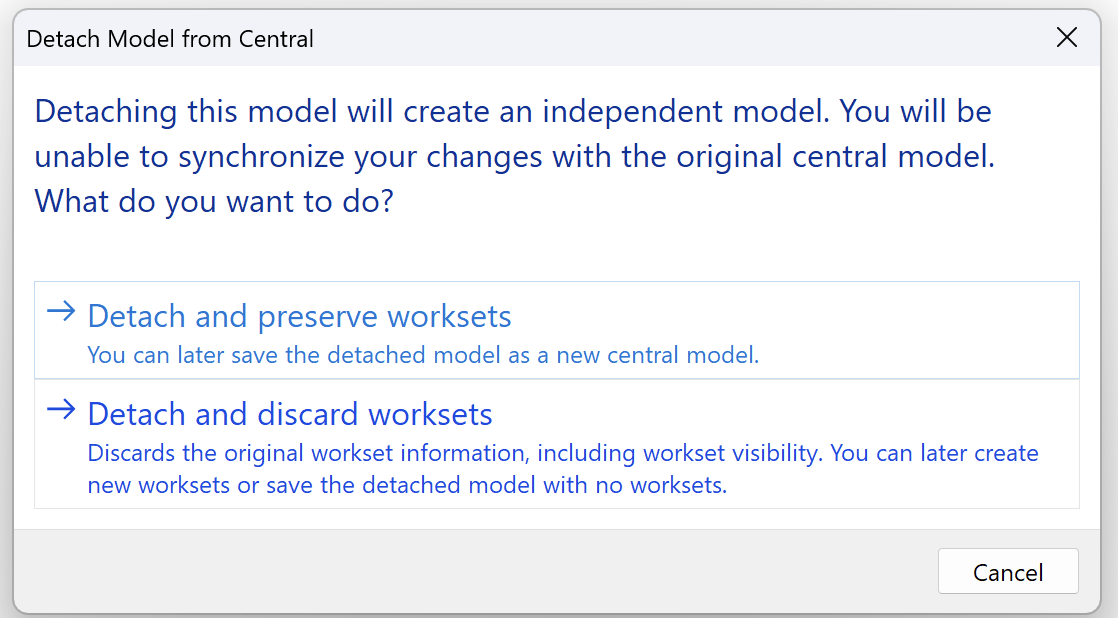
4. Save the file over the central file using Save As and select the model’s path.
If prompted with a warning, choose Yes. After this, the saved file will be considered the new central file.
5. Relinquish all borrowed worksets.
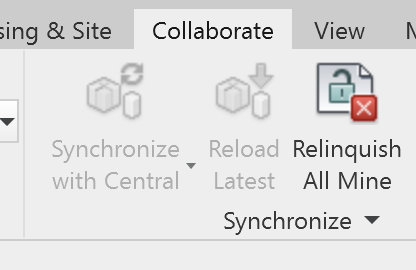
6. Synchronize the file.
7. Close the file.
8. Create a new local file and continue working.